Tool use
- Select a SCI level from the 4 selections available
- Then click on the associated co-morbidity to see recommended equipment
- Review recommended AT devices (some recommended equipment have AT hyper-links attached to it for easy access of a visual representations of the equipment)
Level of Spinal Cord Injury
Co-morbidities
recommendations
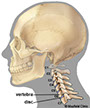 Recommendation for Cervical level SCI with visual deficits
Mobility: Power wheelchair with attendant control and vent tray (depends on client's SCI level), and possible use of dog-guides
Computer Access: Alternate keyboards: on-screen or mini, quad joy or head mouse, eye gaze system (smart nav), Dragon natural speaking, voice command systems, magnifying software for computer

EADLs: possible need for switch or voice access; self-feeders, magnifiers, talking calculator
Communication Devices: switch access via sip and puff, quad joy, head mouse, smart nav, head or tongue control to a cellphone with voice control (newer phones have capability to work with switch access)
infrared
Recommendation for Cervical level SCI with dexterity deficits
Mobility: Power wheelchair with attendant control
Computer Access: Alternate keyboards: on-screen or mini, quad joy or head mouse, mouthstick, head/chinpointer, smart nav, Dragon natural speaking, eye gaze system, voice command systems, Co:writer software
EADLs: possible need for switch or voice access; self-feeders
Communication Devices: switch access via sip and puff, quad joy, head mouse, smart nav, head/chin control or tongue control to a cellphone with voice control (newer phones have capability to work with switch access)
Recommendation for Cervical level SCI with hearing deficits
Mobility: Power wheelchair with attendant control
Computer Access: Alternate keyboards: on-screen or mini, quad joy or head mouse, smart nav, Dragon natural speaking, eye gaze system, voice command systems, TTYs with Turbocode, computer modems (ASCII), as well as via Internet (IP relay) , Video relay service, Speech-to-speech service, Voice carry-over, Internet: sign language video service
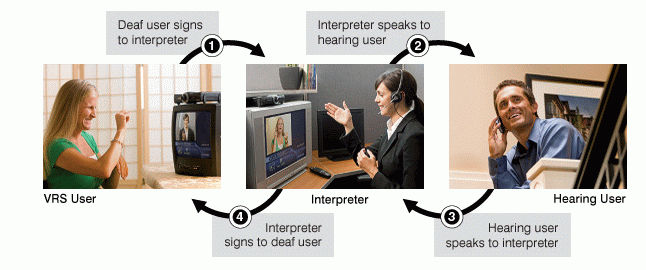
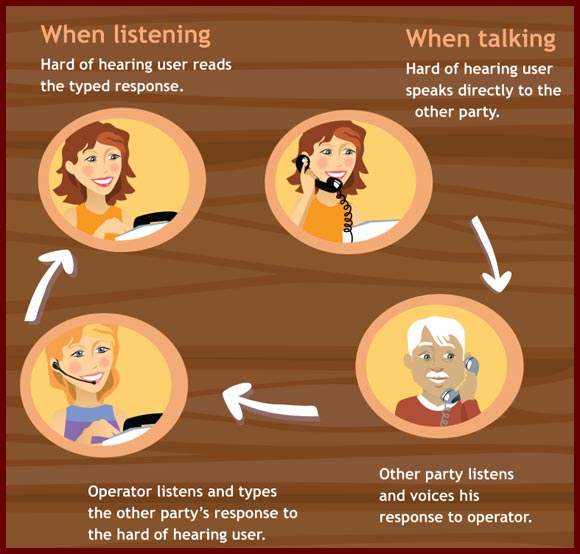
EADLs: possible need for switch or voice access; self-feeders, vibrating multi-sound wrist bracelets
Communication Devices: switch access via sip and puff, quad joy, head mouse, smart nav, head or tongue control to a cellphone with voice control (newer phones have capability to work with switch access), hearing aids with cellphone interface, doorbell indicators, fire and smoke alarm, vibrating multi-sound wrist bracelets
Recommendation for Cervical level SCI with cognitive deficits
Mobility: Power wheelchair with chin switch, switch array, sip and puff, or possible need for attendant control
Computer Access: Alternate keyboards: on-screen or mini, quad joy or head mouse, smart nav, Dragon natural speaking, eye gaze system, voice command systems, Intellikeys
EADLs: possible need for switch or voice access; self-feeders, alarm use for medication management
Communication Devices: switch access via sip and puff, quad joy, head mouse, smart nav, head or tongue control to a cellphone with voice control (newer phones have capability to work with switch access)
Recommendation for Cervical level SCI
Mobility: Power wheelchair with chin switch, switch array, sip and puff, and possible need for attendant control. Hoyer lift used for functional transfers, depending on severity of injury might be able to drive with hand controls
*depending on the client's injury level (C5-C7) a manual wheelchair with projection knobs maybe appropriate for short distance use*
Computer Access: Alternate keyboards: on-screen or mini, quad joy or head mouse, smart nav, Dragon natural speaking, eye gaze system, voice command systems
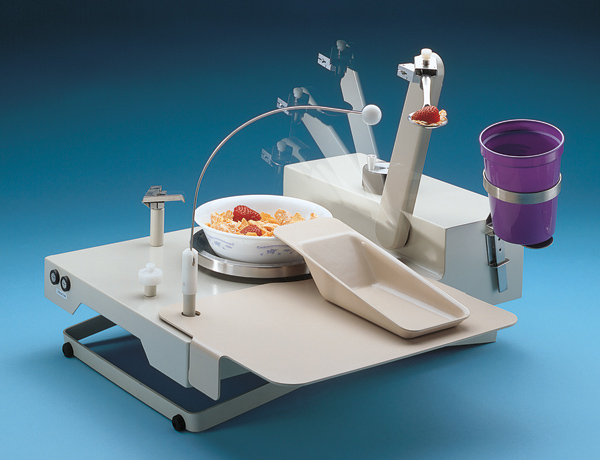
EADLs: possible need for switch or voice controlled technology (Quartet); self-feeders, door openers, page turners
Communication Devices: switch access via sip and puff, quad joy, head mouse, smart nav, head or tongue control to a cellphone with voice control (newer phones have capability to work with switch access) infrared
Visual Deficits
Dexterity
Hearing Deficits
Cognitive Deficits
None
Things to consider when choosing AT
Key words:
1. Level of Spinal Cord Injury
2. What movements are available to the client?
3. Possible access points on client (head, chin, cheek, hands, elbow, knees, feet)
4. Clients familiarity with technology or openness for technology
5. Client goals
6. Clients psychosocial status
- Mental state
-
Emotional state
- Suicidal ideation
- Social health
- Spiritual health
7. Environmental concerns
- Where will equipment be used? (home, work, outdoors, play or school, rural vs city)
- Identified environmental (physical) and social barriers
8. Mounting: where will AT be mounted?
- Avoid mounting to movable components
- Mount above the tilt, if a tilt is present
- Consider a locking frame clamp if tilt is present
*MOST IMPORTANTLY, DON’T FEEL OVERWHELMED.
IF YOU CAN THINK OF AN AT SYSTEM, IT CAN BE CREATED*
-
Alternative input devices allow individuals to control their computers through means other than a standard keyboard or pointing device. Examples include:
- Alternative keyboards—featuring larger- or smaller-than-standard keys or keyboards, alternative key configurations, and keyboards for use with one hand.
- Electronic pointing devices—used to control the cursor on the screen without use of hands. Devices used include ultrasound, infrared beams, eye movements, nerve signals, or brain waves.
- Sip-and-puff systems—activated by inhaling or exhaling.
- Wands and sticks—worn on the head, held in the mouth or strapped to the chin and used to press keys on the keyboard
- Joysticks—manipulated by hand, feet, chin, etc. and used to control the cursor on screen.
- Touch screens—allow direct selection or activation of the computer by touching the screen, making it easier to select an option directly rather than through a mouse movement or keyboard. Touch screens are either built into the computer monitor or can be added onto a computer monitor.
- Accessibility software: software designed to help individuals with physical limitations
- Communication aides: electronic and non-electronic devices and software solutions that provide a means for expressive and receptive communication
- Computer access: input and output devices, alternative access aids, modified or alternative keyboards, switches, special software, and other devices and software solutions
- Electronic aids to daily living (EADLs): Any electronic technology used for the specific purpose of providing independent operation of any electrical equipment. EADLs can be adapted for control by any individual, as long as that person can perform a consistent voluntary action.
- Mobility: electronic and non-electronic aids such as wheelchairs (manual and electronic), walkers, scooters that are used to increase personal mobility
- On-screen keyboards provide an image of a standard or modified keyboard on the computer screen that allows the user to select keys with a mouse, touch screen, trackball, joystick, switch, or electronic pointing device. On-screen keyboards often have a scanning option that highlights individual keys that can be selected by the user. On-screen keyboards are helpful for individuals who are not able to use a standard keyboard due to dexterity or mobility difficulties.
- Switches and Switch Software: Switches offer an alternative method to provide input into a computer when it is not possible to use a more direct access method. Switches come in various sizes, shapes, colors, methods of activation, and placement options. An interface device and software program are usually required to connect the switch to the computer and interpret the operation of the switch.
- TTY: Text Telephone
- Visual Aids: electronic and non-electronic aids such as magnifiers, talking calculators, Braille writers, adapted tape players, screen reading software applications for the computer, and Braille note-taking devices.